Reports
Applications Dashboard provides a comprehensive view of student processing data,
categorized by country. It displays summary counts for Branches, Applications, Financials, Visa,
and Billing, making it easy to monitor and manage student progress at a glance.
Country-Wise Summary - View aggregated counts for each processing stage, organized by
country.
Detailed Breakdown - Click on any count to drill down and access detailed information about
the students associated with that stage.
Expandable Views - Expand each country row to see processing stages like Application
Incomplete, CAS Received, CoE Sent, Visa Declined, and more.
Advanced Filters - Narrow down data using filters such as Year, Intake, Country, University,
Branch, and Status.
User-Friendly Interface - Designed for quick insights and efficient navigation, helping
teams stay updated and take action faster.
Students
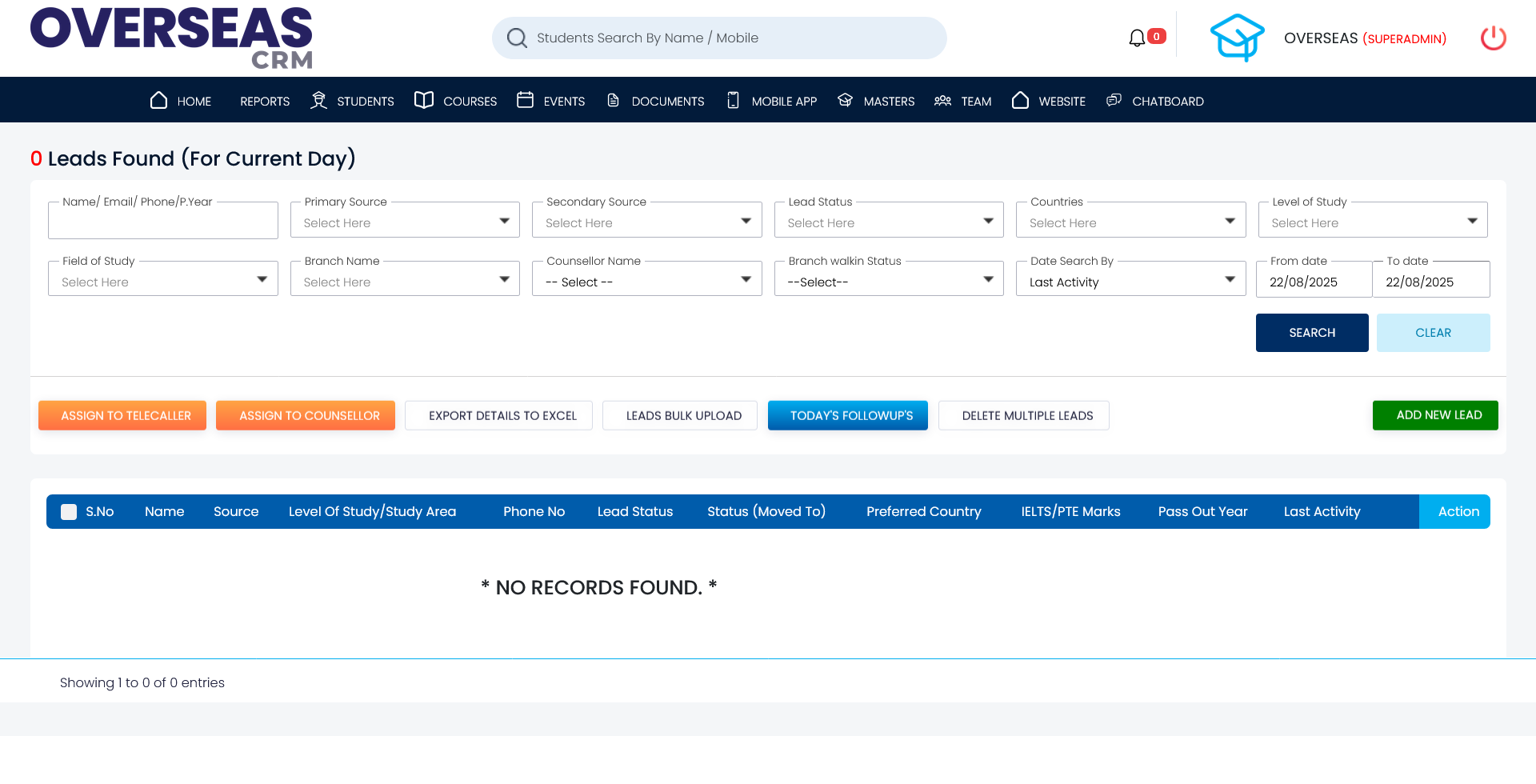
Ability to add new records to the Leads.
search and filter options.
Edit existing records while maintaining data integrity.
Soft delete or permanently delete records , with confirmation prompts to avoid
accidental deletion.
Pagination - Options to navigate through older posts easily.
counsellors and the lead for
each specific lead. Assign to telecaller - Assigning particular lead to telecaller to assist lead
Assign to counsellor - Counsellors to take care of a particular lead and process the
application to be successful
Export Excel - Export bulk data with options to apply filters.
counsellors , the admin can receive the same data via email, if
required.
Excel sheet (a sample template will be
provided).
Today follow ups - Display leads with follow-ups scheduled for today
View "
button.
Student
Registration ,"the corresponding lead data will be copied to the Students module for further
processing.
status can be maintained.
Students module is designed to manage and maintain complete information of students
whose lead
status has been updated to "Student Registration ." Once a lead is converted, their data is
transferred to this module, where the full student lifecycle is tracked—covering personal details,
documents, university applications, visa processing, and refunds. It serves as a centralized
system to monitor and support each student’s progress through the entire application and admission
journey
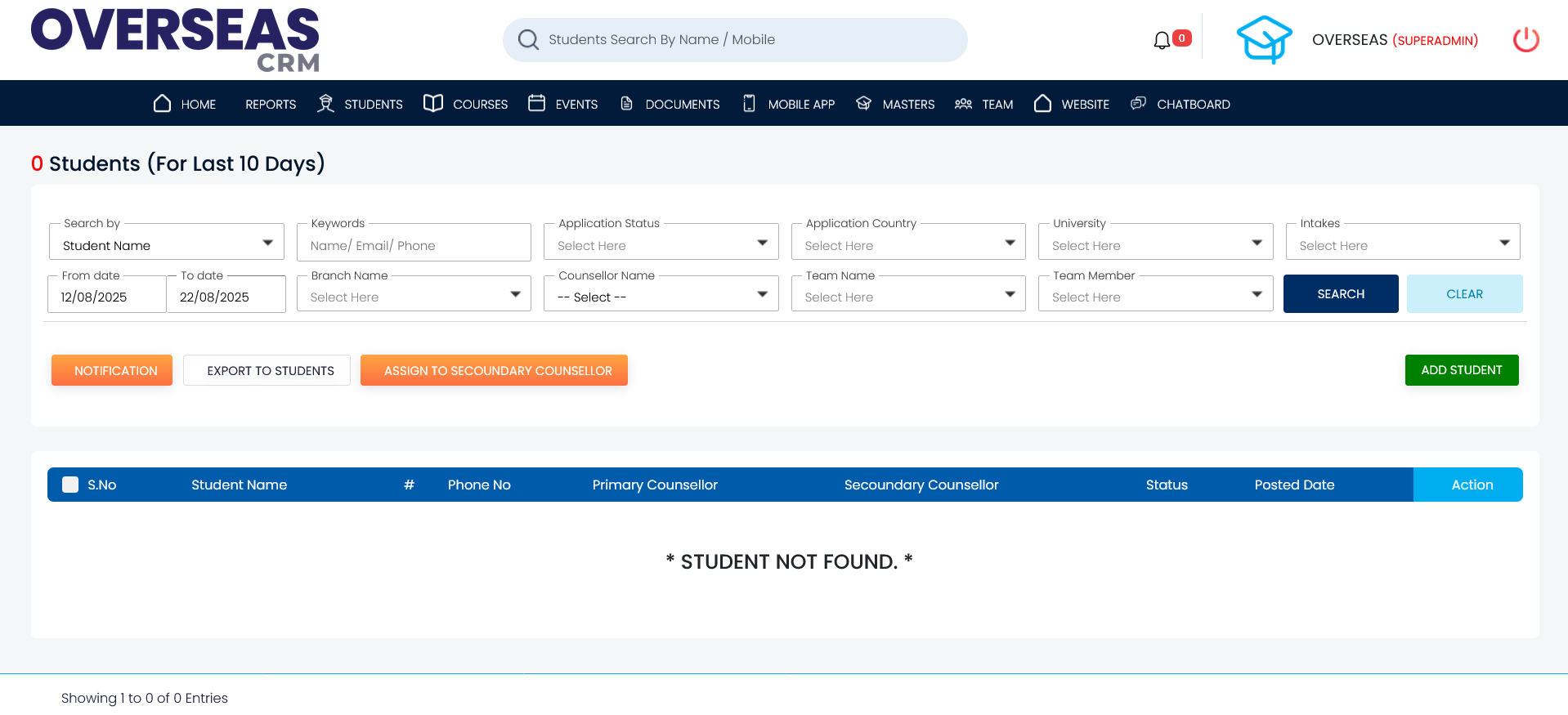
Ability to add new records to the Students.
search and filter options.
Edit existing records while maintaining data integrity.
Soft delete or permanently delete records , with confirmation prompts to avoid
accidental deletion.
Pagination - Options to navigate through older posts easily.
Export Excel - Export bulk data with options to apply filters.
data is exported by counsellors, the admin can receive the same data via email, if
required.
Comment history is maintained, for each specific student.
Counsellor , The same student will be visible to both counsellors upon
login, allowing them both to follow-up on the student's progress.
student's status and view complete .
information for a specific student :
Profile Section - Displays comprehensive student data, including education,
personal information, and employment history. After verification, proceed to the next step,
Documents.
Documents Upload the necessary documents for the student. After verification, proceed to
the next step, Application & Process.
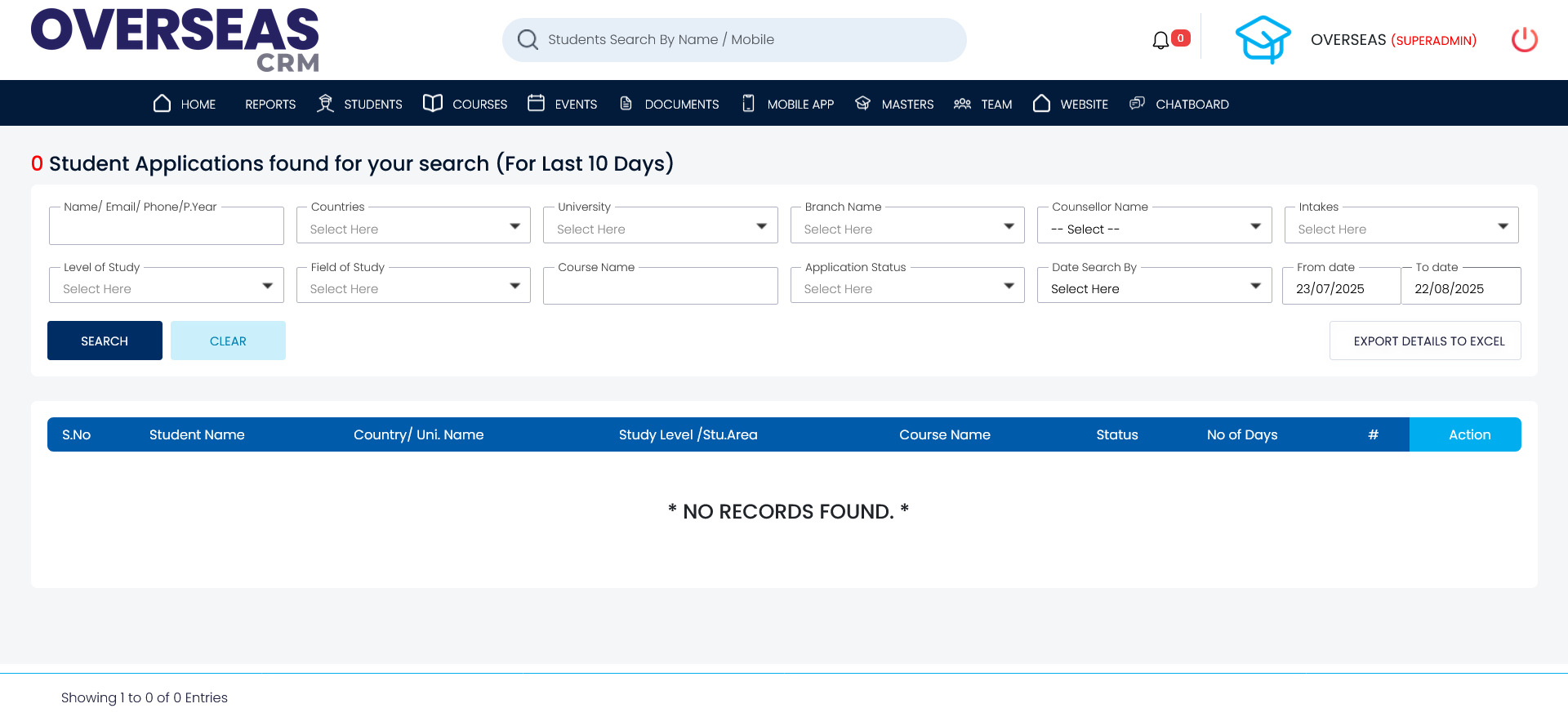
Application & Process - Add student applications for applied universities and track their
statuses. After receiving an offer from a particular university, proceed to the next step, Visa.
Visa Manage only the applications with an "Offer Received" status. Maintain visa status
and, if the visa is rejected, access the Cancel/Refund process.
Cancel/Refund Record the reasons for rejection and manage the refund amount if applicable.
Notification After selecting the student checkbox, send a notification for the selected
student.
Ability to add new records to the Applications.
search and filter options.
Edit existing records while maintaining data integrity.
Soft delete or permanently delete records , with confirmation prompts to avoid
accidental deletion.
Pagination Options to navigate through older posts easily.
Export Excel - Export bulk data with options to apply filters.
exported by counsellors, the admin can receive the same data via email, if
required.
Today follow-ups - To know counsellors to follow-up those students
Courses
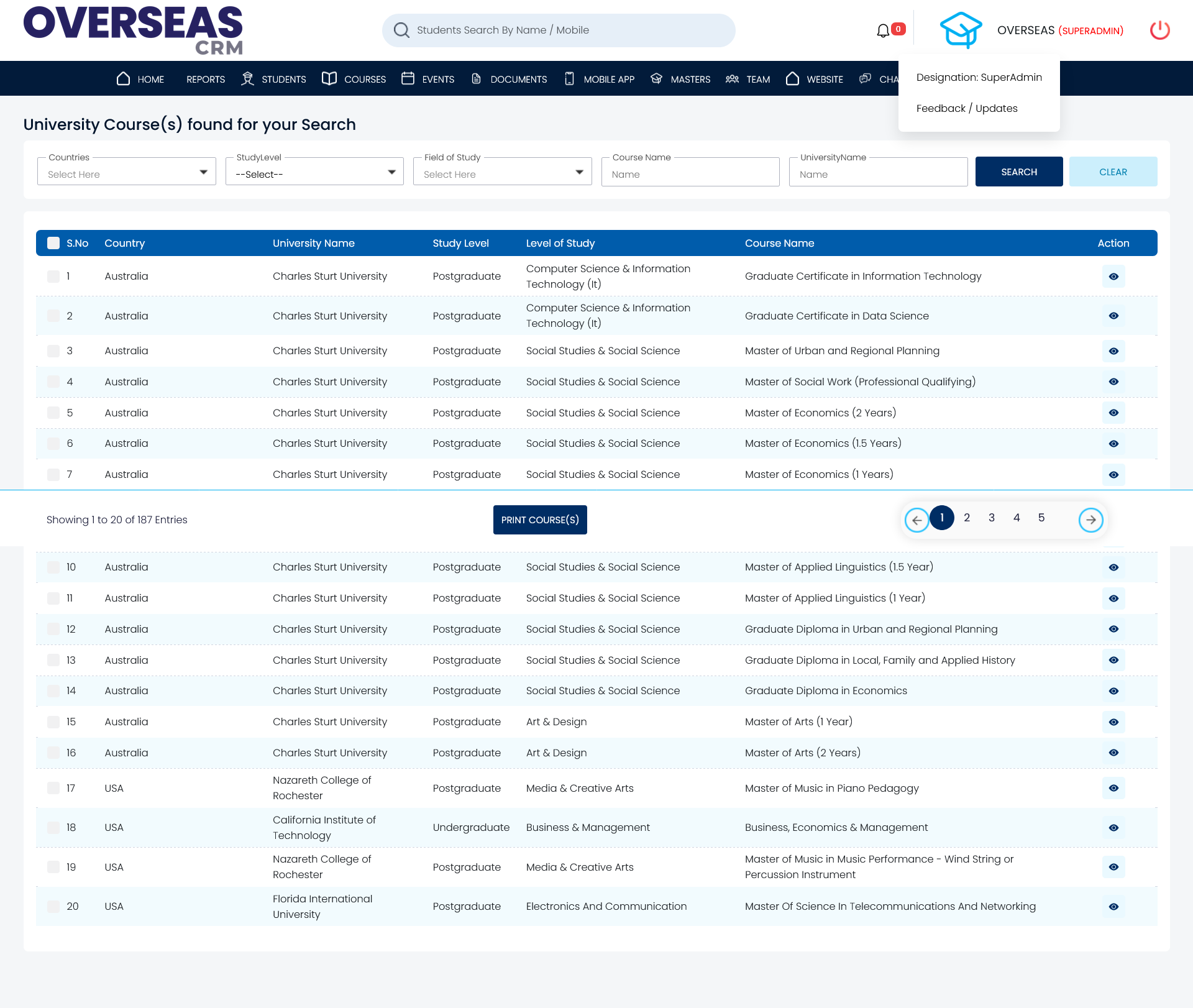
The University Courses module is used to manage and maintain the list of available courses
offered by various universities across countries. It allows administrators to add, edit, upload,
and organize course data, which directly reflects in the Course Search module for
students and
counselors to access.
Add New Records - Allows manual entry of course details including country, university
name, course name, level of study, and field of study.
Bulk Upload - Supports uploading multiple courses at once using a standard Excel
template.
Edit & Maintain Integrity - Enables updating existing records while preserving data
accuracy.
Status Control - Lets admins change course visibility by setting status as Active or
Disabled.
Soft Delete / Permanent Delete: Provides deletion options with confirmation to avoid
mistakes.
Search & Filter - Offers advanced filtering by country, study level, course name, and
university.
Pagination - Helps navigate through large sets of records easily.
Export to Excel Facilitates exporting course data for reporting or
analysis.
Mobile APP
Featured & Trending module is used to manage dynamic content that appears on the
Featured & Trends section of the mobile application. It allows administrators to showcase
highlighted programs, promotions, or categories tailored for specific countries, study levels, or
areas of interest. This enhances user engagement by providing quick access to trending or
recommended options.
Dynamic Content Management: Add content with customizable fields such as Title, Sub Title,
Image, Video URL, Video Thumbnail, and Description.
Mobile App Integration: All records added here are reflected on the mobile app’s "Featured
& Trending" screen.
Redirect Configuration: Set up redirection types (e.g., pages or actions) and corresponding
values for navigation on the mobile app.
Filtering Options: Assign entries by Country, Study Area, Study Level, and Location to show
relevant content to the right audience.
Visual Elements: Upload visual assets including image thumbnails (183x197px) and video
thumbnails for enhanced presentation.
Categorized Navigation: On tap, users can explore more related content grouped under the
selected featured item.
Video Counselling Meetings module allows administrators and counselors to seamlessly
manage
virtual counselling sessions. When the Add button is clicked, a unique Meeting ID is
automatically
generated, ensuring each session has a distinct reference. Users are required to manually enter
the Meeting Title , while the Meeting Web Link can either be entered manually or
generated
automatically by clicking the Generate button, which uses an integrated third-party API.
Meeting List View , essential details of each meeting are displayed. This includes
the
Meeting Title and a Web Link that, when clicked, opens the video meeting in a new
browser tab.
There is also a Copy Link icon that, when selected, copies the meeting URL to the clipboard
for
easy sharing. The Posted Date shows the creation date of the meeting, while the
Status field
indicates whether the meeting is currently active or not. Administrators can easily toggle this
status as needed. The Action column includes an edit option that allows users to modify
meeting
details.
Meeting Password ,
Start
Date , End Date , Hosted By , Recorded File , Number of
Registrations , and a Description section. The
Description uses a rich text editor, allowing detailed formatting and additional content
entry.
Active are considered valid and visible to participants, making it
easy
for admins to manage which sessions are publicly available. The entire module is designed with a
clean and user-friendly interface that simplifies the process of adding, updating, and organizing
all video counselling sessions in one centralized location.
Video Counselling Registrations module allows administrators and counsellors to track,
manage, and interact with all scheduled video counselling sessions.
Search & Filter Functionality - Users can filter counselling sessions by name, phone
number, date
range, and meeting type (Present or Other) for quick access to relevant records.
Meeting Type Segmentation - Tabs for Present Meetings and Other Meetings allow users to organize
and switch between upcoming and past or alternate sessions.
Detailed View Access - A view icon opens a popup with full lead details including interested
countries, preferred dates and times, and student comments.
Actionable Records - Each row includes quick actions like Join Meeting, Reschedule, Send Notification, Reject, and View to streamline session handling.
Admin-Friendly Interface - Designed for back-office staff and counsellors to easily manage video counselling leads from one place with intuitive controls.
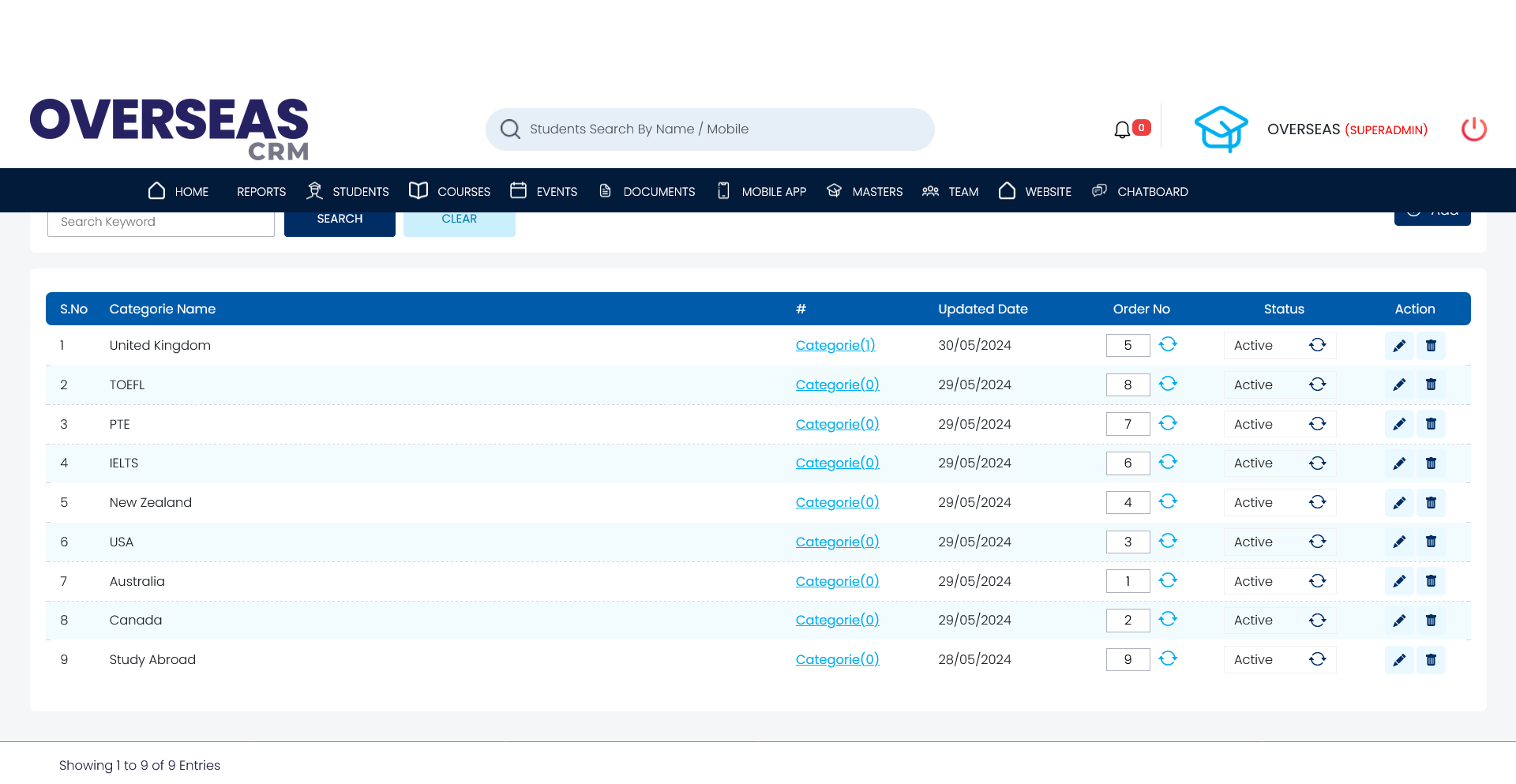
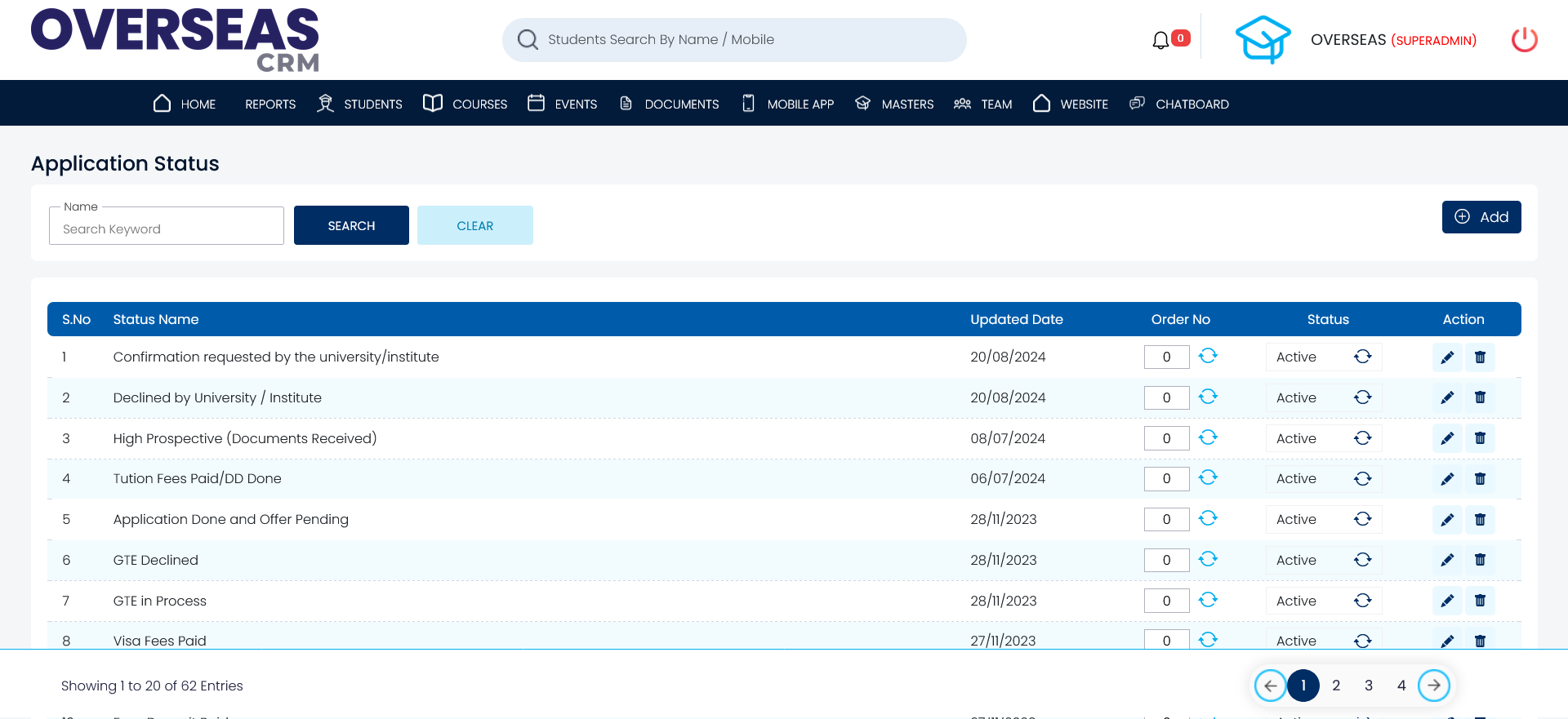
Masters
Modules Included:
Field Of Study, Roles, Country Wise Documents, Intakes, States, Application Status, Lead
Source, Application Status Types, Lead Status, Study Levels, University, Branches, Countries,
QualificationsThese
modules serve as foundational master data used across various parts of
the
application. They provide essential reference values that appear dynamically in dropdowns,
filters, and selection lists throughout the platform — for example, updating lead statuses,
selecting countries, assigning roles, or filtering applications. Add
New Records - Easily add master data such as new statuses, roles, or
qualification levels.View & Search - View data in a user-friendly format with advanced search and
filtering options.Edit Records - Update existing entries while maintaining data accuracy and
consistency.Delete Options - Soft delete or permanently delete entries with confirmation
prompts to avoid accidental changes.Pagination - Smoothly navigate through long lists of master data entries with
pagination support.
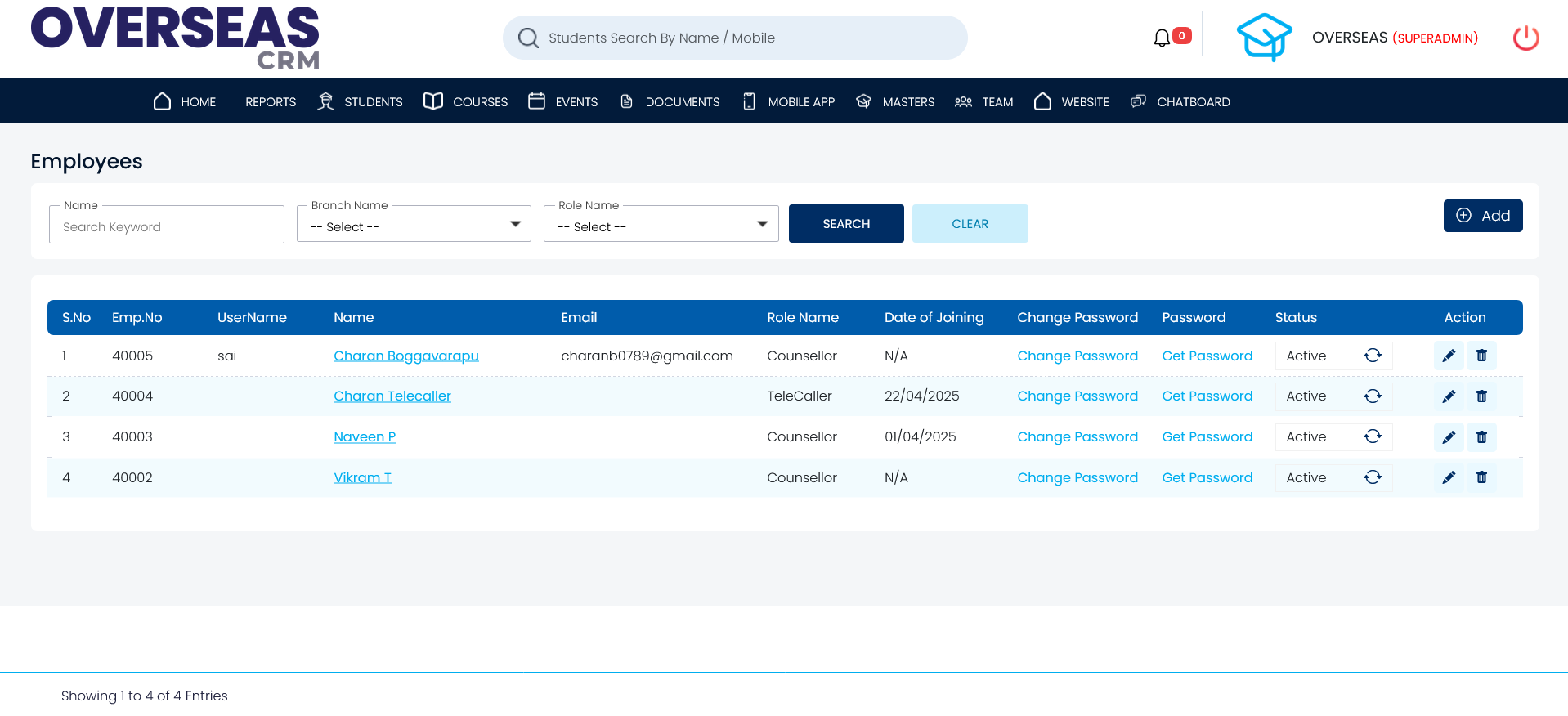
Menu Master module allows administrators to manage and organize the application's
navigation menus dynamically, without changing the source code.
Customizable Menu Structure - Add, edit, delete, or rearrange menu items based on system
needs.
Category-Wise Grouping - Menus are grouped under categories (e.g., Employee category
includes All Employees, Add Employees, Employee Login, etc.).
Role-Based Display - Menus are shown based on user roles such as Admin, Counsellor,
Telecaller, etc.
Dynamic Configuration - Flexibly update the menu list as new modules or features are
added.
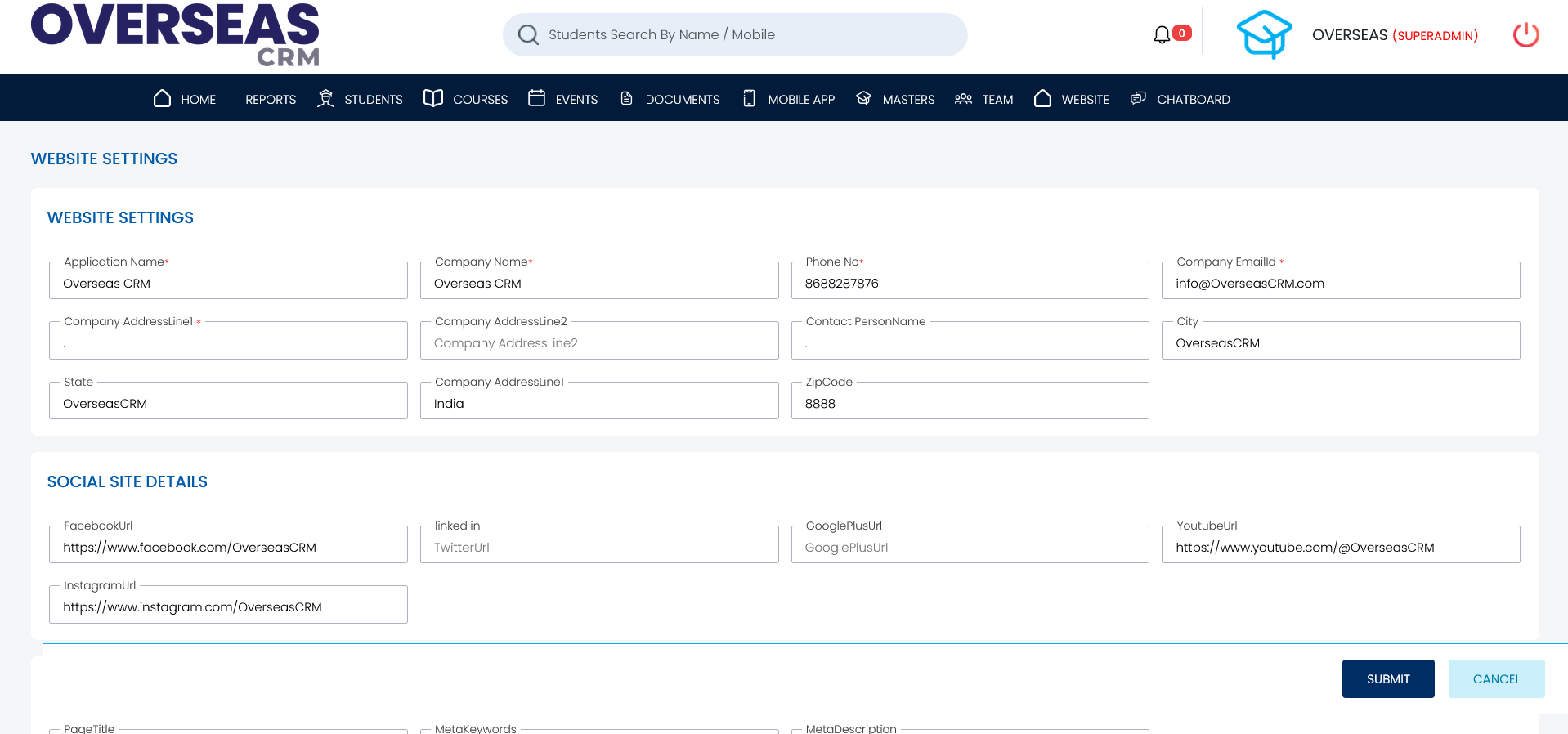
WebSite
Header &
Footer Quick Links - Integration of dynamic quick links in both the header and footer
sections.Multi-Level Dropdown Menus - Support for creating up to 3 levels of dropdown menus for
enhanced navigation.Menu
Management - Ability to enable/disable menu items from the website & Option to rearrange menu
order as needed.External
Link Integration - Capability to add and navigate to third-party URLs directly from the
menu. File
Upload and Navigation - Option to upload PDF, XLS, DOC files & Ability to navigate or link to
uploaded files from the menu.Content
Management System (CMS) Features - Graphics
and Content Updates - CMS features will help for updating graphics and website content
seamlessly.Other
basic operations like delete, status update, etc. can also be performed. Theme
Animations and Sliders - Ability to upload, edit, and enable/disable newly added theme animations
and other sliders.Internal
Page Setup and Navigation Links - This feature will help in adding new internal pages and setting
up navigation links in the menu.Additional
Page Management - The above features will be applicable for adding new pages such as services,
testimonials, clients, FAQ, etc., according to the website sitemap.